How to Create a QR Code: The Complete Step-by-Step Guide
Learn how to create a QR code in minutes. Compare static vs. dynamic codes, follow the steps, avoid common design mistakes, and test before you print.
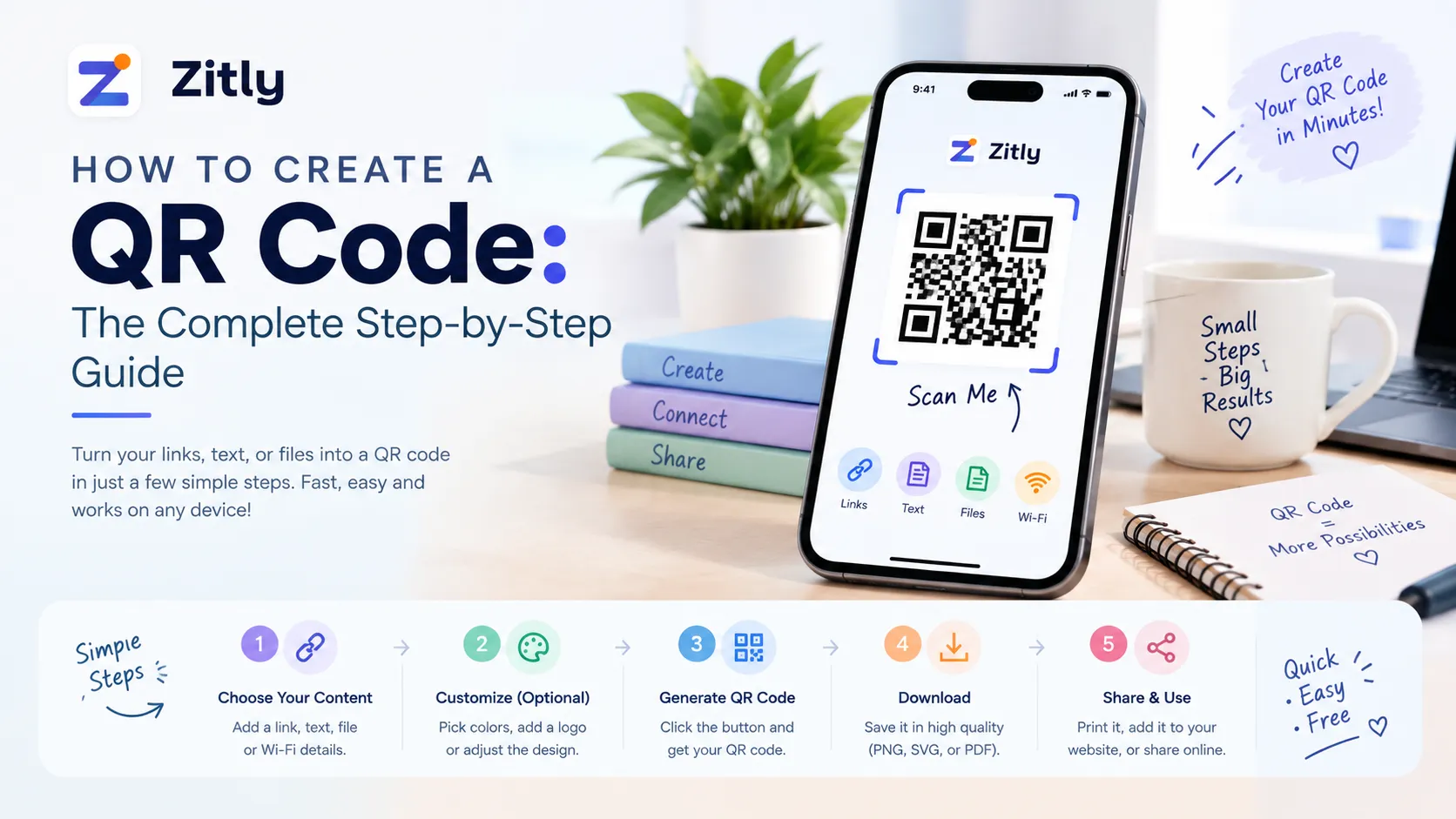
To create a QR code, choose the type of content (such as a website link), paste your content into a QR code generator, pick static or dynamic, adjust the colors and error correction if needed, download the file as SVG or PNG, and test it with at least two phones before you publish or print it. The whole process takes about five minutes.
What Is a QR Code?
A QR code (short for "Quick Response" code) is a two-dimensional barcode that stores information in a grid of black-and-white squares. A traditional barcode holds data in one direction only. A QR code stores data both horizontally and vertically, so it can hold far more: website links, contact details, Wi-Fi credentials, plain text, and payment information.
Engineers at Denso, a Japanese automotive supplier, developed QR codes in 1994 to track vehicle parts during manufacturing. The company’s QR code business later became Denso Wave. You can read the origin story in Denso Wave’s official history of the QR code. Today the codes appear on menus, packaging, tickets, business cards, and payment terminals, and the camera app on most modern smartphones can scan them without an extra app.
Good to know: "QR Code" is a registered trademark of Denso Wave Incorporated. The format itself is an open, published standard, so you can generate QR codes without paying a license fee.
How Does a QR Code Work?
Knowing what is inside a QR code helps you design one that scans reliably. Every code is built from these parts:
Finder patterns: the three large squares in the corners. They tell the scanner where the code is and how it is rotated.
Alignment pattern: a smaller square in larger codes that corrects distortion when the code is viewed at an angle or printed on a curved surface.
Timing patterns: alternating dark and light modules that help the scanner work out the grid size.
Format information: data about the error correction level and mask pattern.
Data and error correction modules: your content, plus backup data that lets the code be read even when part of it is damaged.
Quiet zone: the blank margin around the code that separates it from its surroundings.
When you scan a code, the camera captures the image, software finds the finder patterns, the modules are read as binary data, error correction repairs any damage, and the phone acts on the result, such as opening a link or saving a contact. The full technical specification is published as ISO/IEC 18004.
Types of QR Codes
You can create a QR code for almost any kind of data. The most common types are:
Type | What It Does | Typical Use |
|---|---|---|
URL / Website | Opens a web page | Marketing, menus, landing pages |
Plain text | Displays text | Notes, serial numbers, short messages |
vCard / Contact | Saves contact details | Business cards, networking |
Wi-Fi | Connects to a network | Homes, cafés, offices |
Opens a pre-filled email | Support, feedback | |
SMS | Opens a pre-written text | Promotions, opt-ins |
Phone number | Starts a call | Customer service |
Location | Opens a map pin | Events, directions, real estate |
Calendar event | Adds an event to a calendar | Webinars, conferences |
App store link | Sends people to an app download | App marketing |
PDF / File | Opens a document | Brochures, manuals, menus |
Payment | Opens a payment request | Retail, donations, invoices |
Social media | Links to a profile or page | Creators, brands |
Static vs. Dynamic QR Codes
This choice affects how useful your QR code stays over time.
Static QR codes
The data is permanently encoded in the pattern.
They never expire, and most generators offer them for free.
You cannot edit the content after creating them, and there is no built-in scan tracking.
Best for: Wi-Fi credentials, plain text, permanent links, and personal use.
Dynamic QR codes
The code contains a short redirect link that points to your real destination.
You can change the destination at any time without reprinting.
They usually include scan analytics (scan count, location, device, time).
They often need a paid plan, and they stop working if the service or your subscription ends.
Best for: campaigns, printed materials, packaging, and anything you may need to update.
Rule of thumb: if the code will be printed on something you cannot easily replace, or you want to measure results, use a dynamic code. If the content will never change and you want no dependence on a third party, use a static code.
What You Need Before You Start
A clear goal. What should happen when someone scans the code?
Your content. The final URL, text, contact details, or file.
A working destination. If it is a link, make sure the page loads quickly and works well on a phone.
A QR code generator. An online tool, a design app, or a code library.
Brand assets (optional). Brand colors and a logo, if you want a custom look. If you do not have a color palette yet, you can build one with a color palette generator before you design the code.
Your output format. PNG for screens, SVG or PDF for print.
How to Create a QR Code: Step by Step
This process works with almost any online QR code generator.
Choose your QR code type
Pick the data type that matches your goal, such as URL, Wi-Fi, vCard, or text.
Enter your content
Paste in your link or enter your data. For URLs:
Use the full address starting with https://.
Keep links short and clean. Less data makes a simpler code that scans more easily.
Check for typos. A single wrong character produces dead code.
Decide between static and dynamic
Use the guidance in the static vs. dynamic section above. If you need analytics or the option to edit later, choose dynamic.
Customize the design (optional)
Most generators let you change the foreground and background colors, module shapes, corner styles, add a center logo, and add a frame with a call to action such as "Scan me". Style should never reduce scannability, so keep the design rules below in mind.
Set the error correction level
QR codes have four error correction levels. A higher level lets the code survive more damage but makes it denser.
Level | Recovery capacity | Best for |
|---|---|---|
L (Low) | About 7% | Clean digital screens, maximum data |
M (Medium) | About 15% | General use (a sensible default) |
Q (Quartile) | About 25% | Printed materials that may wear |
H (High) | About 30% | Codes with a logo or rough environments |
Generate and download
PNG: websites, social media, presentations.
SVG: scalable vector, ideal for print and resizing.
PDF or EPS: professional print production.
Test before you publish
Scan the code with at least two different phones before using it anywhere. The testing checklist below covers what to check.
How to Create a QR Code with Code (for Developers)
Developers can generate QR codes programmatically, which suits bulk creation and automation. This example uses the open-source qrcode library for Python.
Install the library:
pip install "qrcode[pil]"Generate a QR code:
import qrcode

qr = qrcode.QRCode(
    version=None,  # auto-size
    error_correction=qrcode.constantsERROR_CORRECT_M,
    box_size=10,   # pixels per module
    border=4       # quiet zone, minimum 4 modules
)
qr.add_data("https://example.com")
qr.make(fit=True)

img = qr.make_image(fill_color="black", back_color="white")
img.save("my_qr_code.png")
Wi-Fi codes use a standard text format. Encode this string the same way as the URL above:
WIFI:T:WPA; S:YourNetworkName; P:YourPassword;QR Code Design Best Practices
A good QR code is both attractive and reliable. Follow these principles:
Maintain strong contrast: Dark modules on a light background scan best. Avoid light-on-light and dark-on-dark pairings.
Do not invert the colors: Light modules on a dark background fail on some scanners. Stick to dark on light.
Keep the quiet zone: Leave a blank margin of at least four modules. Never crop it or let text or graphics intrude.
Keep logos small: A center logo should cover no more than roughly 20% of the code, and you should raise the error correction level when you add one.
Use simple, bold shapes: Heavily stylized dots or tiny decorative modules can confuse scanners. Test any creative design carefully.
Add a clear call to action: People scan more when they know what to expect. "Scan to view the menu" works better than a bare code.
Use vector formats for print: SVG or PDF keeps edges sharp at any size.
Keep the data short: Shorter URLs create less dense codes that scan faster and from farther away.
Choosing brand colors that still scan: pick one dark, saturated color for the modules and a clearly lighter background. If you are building a palette from scratch, start with a color palette generator, choose your darkest shade for the code, and then confirm with a real scan. Medium-tone colors on medium-tone backgrounds are the most common reason a branded code fails.
Size, Placement, and Print Guidelines
Minimum size: for most printed uses, aim for at least 2 × 2 cm (about 0.8 × 0.8 inches). Go larger when people will scan from a distance.
The distance rule: a common guideline is a 10:1 ratio: one unit of code width for every ten units of scanning distance. A code scanned from 1 meter away should be roughly 10 cm wide.
Placement tips
Put codes at eye level and within easy reach.
Avoid curved, wrinkled, or reflective surfaces. Flat, matte surfaces work best.
Do not place codes where people cannot safely stop (roads, moving vehicles) or cannot get a mobile signal, unless the content works offline.
Print tips
Print raster images at 300 DPI or higher.
Use a matte finish to reduce glare.
Request a proof before a large print run.
How to Test Your QR Code
Never skip testing. Run through this checklist:
Scan with an iPhone and an Android phone.
Scan with the default camera app and a dedicated scanner app.
Test in bright light and dim light.
Test from different distances and angles.
Test the printed version, not only the screen version.
Confirm the destination loads correctly on mobile.
Verify the content: spelling, links, phone numbers, and contact details.
Popular Use Cases
Restaurants and cafés: digital menus, ordering, and payments.
Business cards: save contact details or link to a portfolio.
Marketing: connect print ads, flyers, and posters to landing pages.
Product packaging: manuals, warranty registration, authenticity checks, recipes.
Events: entry passes, schedules, and check-in.
Education: link worksheets and textbooks to videos and resources.
Retail: product details, reviews, loyalty programs, promotions.
Real estate: listings and virtual tours on yard signs.
Healthcare: patient forms and appointment check-in.
Payments and donations: fast mobile payments and fundraising.
Wi-Fi sharing: let guests connect without typing a password.
Social media: grow followers with a single scan.
Common Mistakes to Avoid
Skipping testing: Untested code risks a failed campaign.
Using a static code for content that changes: You will have to reprint.
Linking to a page that is not mobile-friendly: Most scans happen on phones.
Poor color contrast: Fancy color schemes often fail in real lighting.
Making the code too small: Fine on a screen, unreadable in print.
Ignoring the quiet zone: Crowded codes scan poorly.
Overloading the code with data: Dense codes are harder to read.
Forgetting a call to action: People will not scan if they do not know why.
Relying on a dynamic service that may shut down: Your printed codes could stop working with it.
Placing the code where there is no internet access.
QR Code Security and Safety
A QR code is just a way of storing a link or data, so the risk comes from where it leads. Scammers sometimes place fake codes over real ones, for example, on parking meters, or send unexpected codes by text or email. The U.S. Federal Trade Commission explains the tactics and protective steps in its consumer alert: Scammers hide harmful links in QR codes to steal your information.
If you scan codes
Check the URL preview your phone shows before you open it, and look for misspellings or swapped letters.
Be cautious with codes stuck over other codes or sent in unexpected messages, especially ones that urge you to act immediately.
Avoid entering passwords or payment details on pages you reached from an unfamiliar code.
Keep your phone’s operating system updated and use multi-factor authentication on important accounts.
If you create codes
Link to HTTPS pages only.
Use a reputable generator that does not add unknown redirects.
Inspect printed codes from time to time for tampering, such as stickers placed on top.
Do not encode sensitive personal data directly in a public code.
Protect dynamic-code accounts with a strong password and two-factor authentication.
How to Track QR Code Performance
If you use dynamic codes, the generator’s dashboard typically reports total and unique scans, scan time and date, approximate location, device type, and conversions.
A method that works with any code, static or dynamic, is to add campaign parameters to your destination URL. Google explains how in its guide to collecting campaign data with custom URLs.
For example:
https://zitly.net/offer?utm_source=flyer&utm_medium=qr&utm_campaign=autumn_sale
Your web analytics will then show how much traffic and how many conversions came from each QR placement. Use consistent lowercase values, because analytics tools treat "Flyer" and "flyer" as different sources.
Troubleshooting: Why Is My QR Code Not Scanning?
Problem | Likely cause | Fix |
|---|---|---|
Will not scan at all | Low contrast or inverted colors | Use a dark code on a light background |
Scans only up close | Code too small or too dense | Enlarge it or shorten the data |
Works on one phone, not another | Over-designed, or low error correction | Simplify the design, raise error correction |
Opens the wrong page | Typo or outdated link | Edit the destination (dynamic) or regenerate (static) |
Blurry result | Low-resolution image | Export as SVG or high-DPI PNG |
Fails in print only | Glossy stock, poor print quality, cropped margin | Use matte stock and restore the quiet zone |
Redirect stopped working | Dynamic service or plan expired | Renew the plan or move to a static code |
Conclusion
Creating a QR code takes only a few minutes, but creating a good one takes attention to detail. Start with a clear goal, choose the right type, and decide between static and dynamic based on whether you will need to edit or track the code. Keep the design high-contrast and uncluttered, respect the quiet zone, size it for the real scanning distance, and test it on more than one phone before it goes live.
If you are planning a branded code, start with the colors: Zitly offers a color palette generator that can help you settle on a scheme before you move on to design and print.
Frequently Asked Questions
Q: Is it free to create a QR code?
Yes. Many generators let you create static QR codes for free, and open-source libraries let you generate them in code at no cost. Dynamic codes with editing and analytics usually need a paid plan.
Q: Do QR codes expire?
Static QR codes never expire because the data is built into the image. Dynamic QR codes work only while the generator’s service and your subscription stay active.
Q: Can I change a QR code after I create it?
Not a static code. To change its content, you must create a new one. A dynamic code lets you change the destination without altering the printed image.
Q: How much data can a QR code hold?
At the largest size, a QR code can store up to about 7,000 numeric characters, roughly 4,000 alphanumeric characters, or about 2,900 bytes of binary data. In practice, shorter data gives a more reliable code.
Q: Do I need an app to scan a QR code?
Usually not. The camera apps on most modern iPhones and Android phones can scan QR codes directly. Older devices may need a free scanner app.
Q: What is the best file format for a QR code?
Use SVG or PDF for print, because they scale without losing quality. Use PNG for websites, social media, and presentations.
Q: Can I add a logo or change the color of my QR code?
Yes. Keep the logo small (about 20% of the area or less), keep strong contrast between the code and its background, and raise the error correction level to make up for the covered area.
Q: How big should a QR code be?
A common minimum for print is about 2 × 2 cm. For longer distances, use the 10:1 guideline: the code should be about one-tenth as wide as the distance it will be scanned from.
Q: Are QR codes safe to scan?
The code itself is harmless, but the link it opens may not be. Check the URL preview before opening it and be careful with codes in unfamiliar places or unexpected messages, since fake codes can be placed over real ones.
Q: Can I track how many people scan my QR code?
With a dynamic QR code, yes. The generator’s dashboard shows scan counts, locations, and devices. With a static code, add campaign parameters to the link and use a web analytics tool.

Fahad Ahmad
Founder of ZITLY · Digital Entrepreneur · SEO & SaaS Specialist
Fahad Ahmad is the founder of ZITLY and a digital entrepreneur with over 10 years of experience in SEO, digital marketing, SaaS development, and web technologies. He specializes in creating practical online tools that help marketers, designers, developers, and business owners work more efficiently.
Through ZITLY, Fahad publishes tutorials, tool comparisons, productivity resources, and research-driven guides focused on simplifying digital workflows and improving online performance.