
WiFi QR Code Generator: Create a Free QR Code to Connect Instantly
Create a free WiFi QR code in seconds. Share network access easily, add a logo, and connect iPhone or Android devices without typing passwords.
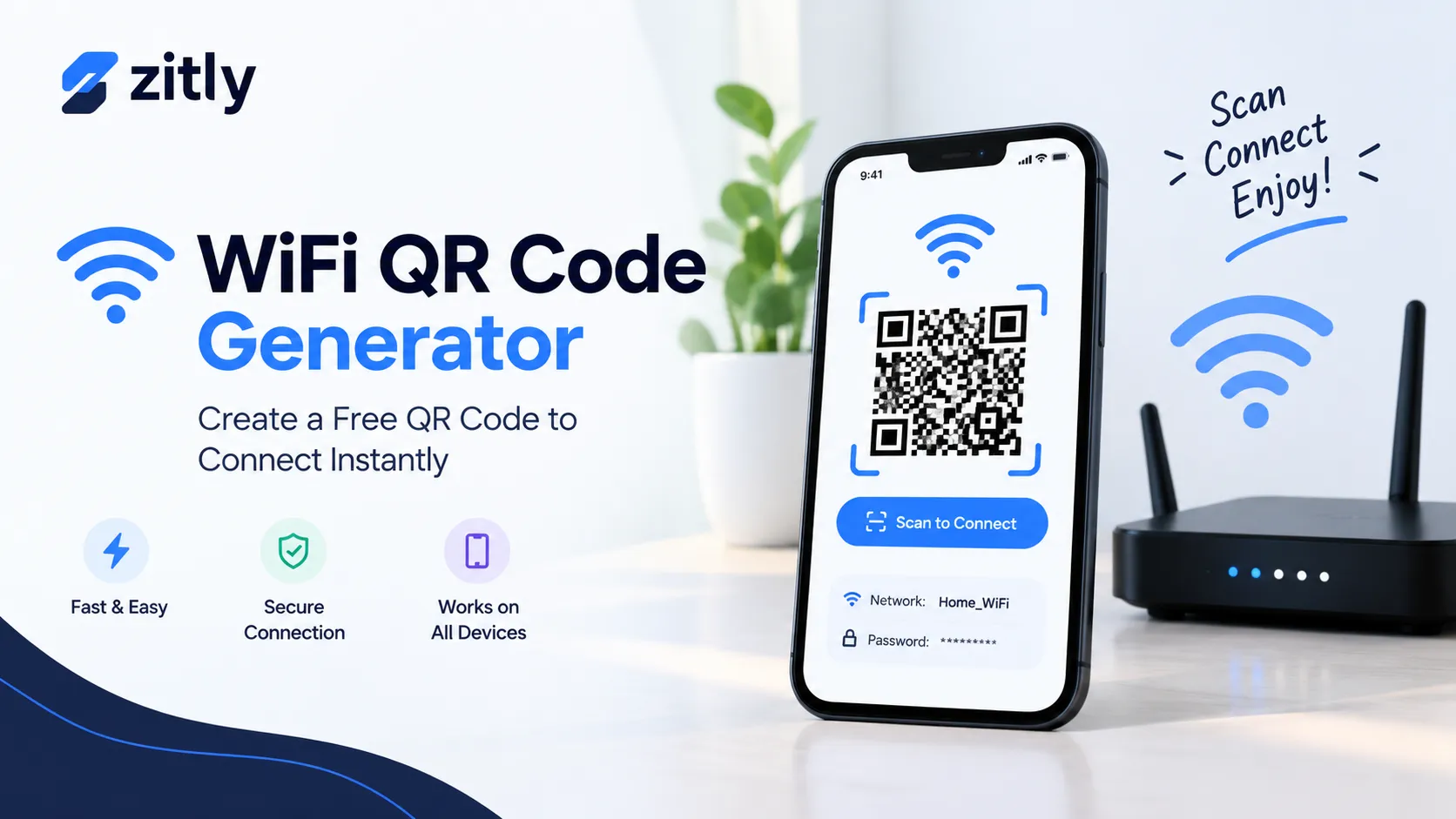
Typing a long WiFi password on a phone is slow, and one wrong character ruins the attempt. A WiFi QR code generator solves this problem. Enter your Wi-Fi network name and password into the tool, and it will generate a QR code for you. Guests can simply scan the code with their phone’s camera to connect to your network within seconds.
This guide shows you how to create a free WiFi QR code, how the code works, and how to add a logo or text. You will also learn how to scan it on iPhone, Android, and PC, how to build one with Python, and which mistakes make codes fail.
What Is a WiFi QR Code and How Can You Use It?
A WiFi QR code stores your network details as plain text in a standard format. When a phone scans the code, it reads the text and offers to join the network. No app and no website are involved. The text looks like this:
WIFI:T:WPA;S:CafeGuest;P:sunny-lemon-42;H:false;;Each part has a job:
Field | What it means |
T | Security type: WPA, WEP, or nopass for open networks |
S | Network name, also called the SSID |
P | The WiFi password |
H | Set to true when the network is hidden |
This format comes from the open ZXing project, and both iPhone and Android cameras understand it. One point matters for security: the password sits inside the code as readable text. Anyone who scans the QR code will be able to view its information. Treat a printed code like a printed password.
How to Create a Free WiFi QR Code in 5 Steps
You can finish this in under a minute. The steps below use the free QR code generator from Zitly, which has a WiFi option.
Choose the WiFi option: Select the WiFi type instead of URL or text, so the tool builds the correct format for you.
Enter the network name exactly: Letters are case-sensitive. "Home-5G" and "home-5g" are two different networks.
Pick the security type: Most routers use WPA2 or WPA3, so choose WPA. Choose "none" only for open networks.
Type or paste the password: Copy it from your router settings to avoid typos. Switch on the hidden option only if your network does not broadcast its name.
Download and test: Save a PNG for screens or an SVG for print. Test the QR code using two separate phones before printing it.
WiFi QR Code Generator Features That Matter
Free With No Sign-Up
A WiFi code needs no account. There is nothing to save, track, or update. If a tool forces you to register, look elsewhere. Privacy matters here, because you are typing a real password. Choose a tool that generates the QR code directly in your web browser.
You can test this: load the page, turn off your internet, and generate a code. If it still works, your password never left your device. Zitly states that its tools process input in your browser, and you can check this in your browser's network inspector.
With a Logo
A logo makes the code look professional on a cafe menu or office door. It also blocks a portion of the QR code. QR codes survive this because Reed-Solomon error correction lets scanners rebuild missing data. At the highest level, a code can lose up to about 30 percent of its area. Follow these rules:
Set error correction to high before you add the logo.
Keep the logo below roughly 20 percent of the code area.
Center it and never place it over the three corner squares.
Choose a dark QR code against a light-colored background for better readability.
Check the code on an older phone as well, rather than testing it only on your latest device.
If you need brand colors with enough contrast, a color palette generator helps you pick a dark-and-light pair scanners can read. The Zitly QR tool then lets you apply those colors and your logo.
With Text
Add a short caption such as "Scan to join Guest WiFi" above or below the code. Keep the text outside the square, never inside it. Add the network name in small print too, so people with older devices can join by hand. Clear instructions raise scan rates more than any design trick.
Without a Password
Yes, you can generate a QR code for a Wi-Fi network that doesn't require a password. Pick "none" as the security type, and the code reads WIFI:T:nopass; S: CafeGuest;;. This suits a public hotspot, but an open network does not encrypt the connection between the device and the router. A better choice is a separate guest network with its own password, shared through a QR code.
For 3D Printing
Makers print WiFi codes as desk plaques and fridge magnets. Export the code as an SVG, then import it into your slicer or CAD tool. Raise the dark squares about 0.6 mm above a white base, or swap filament colors at one layer. Keep each square at least 1 mm wide and keep the blank border around the code. Matte filament reduces glare, and a test scan can save a failed print.
With Canva and Other Design Tools
Design tools such as Canva suit posters, table tents, and welcome cards. Generate the WiFi code first, then place it on your design as an image. Never stretch it, because scanners need perfect squares. Export the final design at high resolution and test the printed copy.
How to Scan a WiFi QR Code on iPhone, Android, and PC
WiFi QR Code Generator for iPhone
Launch your phone’s Camera app and aim it at the QR code. When a notification appears, tap it to connect to the Wi-Fi network. This feature is available on iOS 11 and newer versions without installing another app. To let others connect to your Wi-Fi, create a QR code and either show it on your device or print it out.
Android
Most Android phones can read Wi-Fi QR codes through the default Camera app or Google Lens. Once the code is scanned, tap the on-screen notification to join the network.
To make a code from your own phone, open the WiFi settings, tap your connected network, and choose Share. Menu names vary by brand.
PC
Windows and macOS do not offer a simple QR join option. Use your phone to scan the QR code and view the information, then enter the details on your computer. A WiFi QR code generator for PC works in any browser, so you can create and print codes from your desktop without installing software.
Generator and Scanner Apps
You can scan the code without installing any additional scanning application. Built-in cameras already read WiFi codes. If you install an app anyway, choose one that asks only for camera permission and shows no ads.
Build a WiFi QR Code With Python or GitHub Tools
Developers can create codes in a few lines. The Python library Segno includes a WiFi helper:
# pip install segno
import segno

qr = segno.helpers.make_wifi(
    ssid="CafeGuest",
    password="sunny-lemon-42",
    security="WPA",
)
qr.save("wifi-qr.png", scale=10, border=4)
The scale value sets the pixel size of each square, and border keeps the blank margin that scanners need. This approach works well for batch jobs, such as one code per rental unit or hotel room.
GitHub also hosts many open-source WiFi QR projects. Before choosing a tool, make sure it meets these three requirements:
The license allows your use.
The code runs locally and makes no network calls.
The project is maintained and escapes special characters correctly.
Never paste your real password into a hosted demo you do not trust.
Common Mistakes That Break WiFi QR Codes
Unescaped special characters: The characters \;,: and " need a backslash in front of them. Good generators add it for you.
Wrong security type: Choosing WPA for an open network, or the reverse, makes the join fail.
Missing hidden flag: Hidden networks do not appear in lists, so the code must say so.
Low contrast: A light code on a dark background fails on some scanners.
Tiny print: Print the code at least 2 cm wide, and larger if people scan from a distance.
Stale codes: A new password makes every old code useless. Generate a new one the same day.
Security Tips Before You Share Your Code
Use a guest network so visitors stay away from your laptops, cameras, and smart devices.
Use WPA2 or WPA3 security. The Wi-Fi Alliance maintains both standards.
Choose a strong passphrase made of several random words. A password generator can create one on your device.
Use a static code, not a dynamic or short-link code. A static code stores the details inside, so it works offline and nobody can redirect it.
Place the printed code where only guests can see it, such as inside a room or behind a counter.
Change the password after events and long rentals.
Real-World Use Cases
Short-term rentals: A host places a laminated code in the welcome guide. Guests connect on arrival and send fewer messages.
Cafes and shops: A table tent with a code and a caption cuts the "what is the password?" question. Add a second code for your menu or website, and track its scans with a UTM builder.
Offices: A visitor network code at reception keeps staff networks private.
Events: Create a separate event network, show the code on signs, and delete the network afterward.
Home: A fridge magnet helps guests and babysitters connect without asking.
Quick Checklist Before You Print
The network name matches exactly.
The security type is correct.
You tested the code on an iPhone and an Android phone.
The printed code is at least 2 cm wide with a blank border.
The caption tells people what to do.
You noted the date of your last password change.
Conclusion
A WiFi QR code replaces password typing with a two-second scan. Choose the right security type, test the code on two phones, and refresh it whenever your password changes. Ready to make yours? Try the free QR code generator on Zitly and create your WiFi code now. You can also read more guides on the Zitly blog or browse all free tools.
Frequently asked questions
Q: Is a WiFi QR code generator really free?
Yes. Creating a WiFi code costs nothing, and you should not need an account. Many free tools also let you download PNG and SVG files without watermarks.
Q: Is it safe to make a WiFi QR code online?
It is safe when the tool builds the code in your browser and does not store your data. If you feel unsure, use a Python script on your own computer.
Q: Does a WiFi QR code expire?
No. A static code never expires. It stops working only when you change the network name, password, or security type.
Q: Can I make a WiFi QR code without a password?
Yes. Choose "none" as the security type for an open network. For better safety, use a guest network with a password instead.
Q: How do I scan a WiFi QR code on iPhone?
Open the Camera app, point it at the code, and tap Join Network. It works on iOS 11 and later.
Q: Can a laptop scan a WiFi QR code?
Most laptops cannot join a network from a code directly. Scan it with your phone, read the details, and type them on the laptop.
Q: Can I add a logo to a WiFi QR code?
Yes. Use high error correction, keep the logo small and centered, and test the code before you print it.
Q: What size should a printed WiFi QR code be?
Print it at least 2 cm wide. Make it larger for posters or when people scan from more than half a meter away.
Q: Can one QR code cover several networks?
No. Each code holds one network. Create a separate code for each network or guest network you run.
Q: What should I do after I change my WiFi password?
Generate a new code with the new password and replace every printed copy. Old codes stop working right away.

Fahad Ahmad
Founder of ZITLY · Digital Entrepreneur · SEO & SaaS Specialist
Fahad Ahmad is the founder of ZITLY and a digital entrepreneur with over 10 years of experience in SEO, digital marketing, SaaS development, and web technologies. He specializes in creating practical online tools that help marketers, designers, developers, and business owners work more efficiently.
Through ZITLY, Fahad publishes tutorials, tool comparisons, productivity resources, and research-driven guides focused on simplifying digital workflows and improving online performance.
Related Articles
View all
Learn how to create a QR code for free, choose static or dynamic codes, customize it, test it, and keep it working for years.
Create a QR code with a logo that stays scannable. Learn about logo size, error correction, colors, testing, printing, and free QR code tips.
Compare 3 vs. 6 color palette generators, learn color harmony rules, accessibility tips, and how to create professional palettes for any project.