
QR Code Generator with Logo: Add Your Brand and Keep Every Scan Working
Create a QR code with a logo that stays scannable. Learn about logo size, error correction, colors, testing, printing, and free QR code tips.
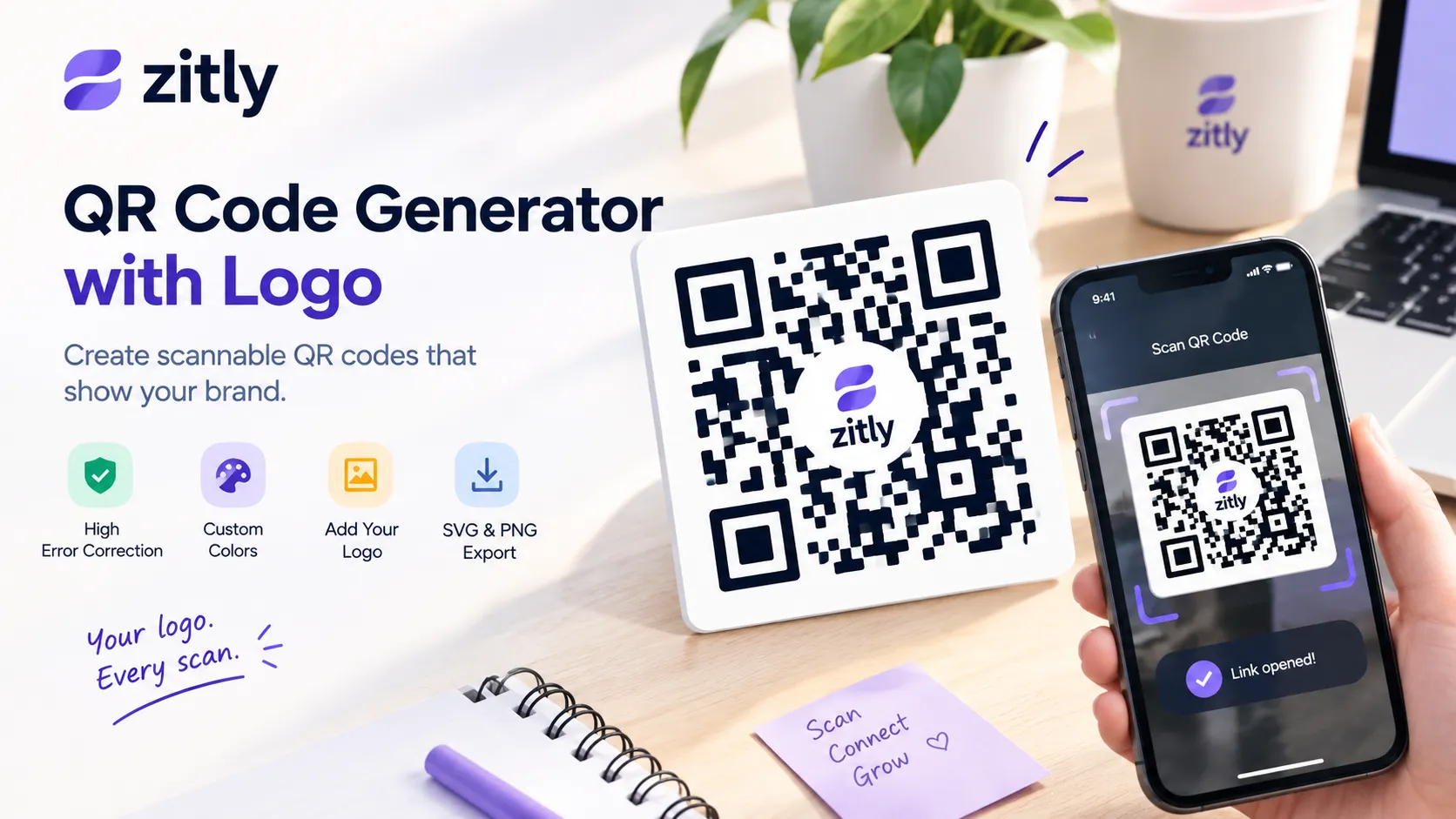
How a QR Code Generator with Logo Stays Scannable
Every QR code stores extra data built with Reed-Solomon error correction. A scanner uses it to rebuild modules that are dirty, scratched, or covered. Your logo is planned damage. Denso Wave, the code's inventor, explains the four levels in its error-correction guide, and the layout follows the ISO/IEC 18004 standard.
Level | Recovery | Logo advice |
|---|---|---|
L | 7% | Do not add a logo |
M | 15% | Too tight for most logos |
Q | 25% | Tiny logo, heavy testing |
H | 30% | Best choice for any logo |
Higher recovery costs density. The generator spends more of the grid on recovery data, so modules shrink at the same print size. Zitly switches to High automatically when you upload a logo, and you can confirm it in the Size tab.
The Logo Size Rule That Protects Your Scan
Many guides say a logo can cover 30% of the code. That number describes recovery data, not a safe logo, and it confuses width with area. A logo 25% as wide as the code covers only 6% of its area, because area is width squared.
Logo width | Area covered | Verdict |
|---|---|---|
15% | 2% | Safe for most codes |
20% | 4% | Recommended |
25% | 6% | Upper limit; test on several phones |
30% | 9% | Risky, especially with long URLs |
Why Long URLs Make Logos Riskier
A long URL needs a larger code version, which means more and smaller modules. The same logo then hides more of them. A 25-character link gives an open pattern. A 150-character link full of tracking tags does not.
QR Code Generator with Logo in the Center: Why the Middle Works
A scanner first hunts for the three large corner squares. Then it reads the timing lines and the small alignment square. Those fixed patterns are not protected by error correction. If a logo touches them, the scan fails no matter how high the recovery level is. The middle holds only data modules, which is why centered placement is the only safe layout. A logo inside the code but pushed toward a corner risks the fixed patterns, and a logo in the middle stays recoverable.
How to Add a Logo to a QR Code in Six Steps
Open the Zitly QR tool and pick a content type. URL covers most logo codes. WiFi, vCard, and WhatsApp are also available.
Enter the final destination. If you track campaigns, build the link first with the UTM builder.
Choose a style and colors. Start with the Classic style, because decorative frames reduce reliability.
Upload your logo in the Logo tab. Choose a square logo with a transparent background and place it directly in the center of the QR code.
Enable high error correction to help the code remain readable. For screen use, choose a resolution of at least 600 pixels.
Create the QR code, scan the preview using your phone to make sure it works, and then download it as an SVG for printing or a PNG for digital use.
Prepare Your Logo and Select Scan-Friendly Colors
Make the background transparent: Remove any solid background around the logo, as a white box can hide some of the QR code modules. Save the logo as a transparent PNG for the best result.
Use the icon, not the wordmark: A wide wordmark hides a long strip of modules, so the damage clusters instead of spreading out.
Check the physical size: On a 3 cm code, a 20% logo is only 6 mm wide. Thin lines and taglines vanish at that scale.
Keep the file light: Run heavy artwork through the image optimizer so the upload stays fast.
Scanners detect the edge between dark modules and a light background. Black on white is the most reliable pair, but brand colors work with enough contrast.
Aim for at least 4:1 contrast, the same idea behind the WCAG contrast guidance.
Keep the modules darker than the background. Inverted codes fail on some older scanners.
Find a deep shade of your brand color with the color palette generator.
QR Code Maker with Images: Logo or Photo?
When users look for a QR code maker that supports images, they are usually referring to a few different uses. Adding a logo to the center of a QR code is one of the most practical options. A logo inside the code works well. A link to an image file also works, using the Image URL type. A photo behind the modules does not, because it destroys contrast. Choose the first two.
Free QR Code Generator with Logo and No Expiration
Any tool that promises codes with no expiration must create static codes. Dynamic services route every scan through their server, and some stop redirecting when a trial ends. Static codes keep the data in the image, so they last as long as the print.
Factor | Static | Dynamic |
|---|---|---|
Change destination after print | No | Yes |
Scan analytics | No | Yes |
Ongoing cost | None | Subscription |
Works if provider closes | Yes | No |
Choose static for anything printed permanently. You can still measure results by adding UTM tags to the URL and reading them in GA4, as Google explains in its campaign URL guide. Use short values such as utm_source=qr, because every extra character adds density.
Dynamic codes fit one case: a long campaign where the destination may change. Even then, own the redirect domain.
Test and Print Your Logo QR Code
Scan with an iPhone camera, an Android camera, and one phone that is three years old or more.
Test at your real viewing distance, in dim light and under glare.
Scan a printed proof on the final material. Matte stock beats glossy.
Print at 2 cm across or larger. For distance, add 1 cm of code for every 10 cm of scanning distance. Leave a 4 mm quiet zone on all sides.
QR Code Generator with Logo for Canva, Adobe, WiFi, and LinkedIn
Use case | Format | Error level | Logo width |
|---|---|---|---|
Business card | SVG | H | 20% |
Restaurant table card | SVG | H | 20% |
Event flyer | SVG | H | 20% |
Outdoor packaging | SVG | H | 15% |
WiFi sign | SVG | H | 15% |
LinkedIn profile on a badge | SVG | H | 20% |
Billboard | SVG | H | 15% |
For Canva layouts or Adobe files, generate the code first, download the SVG, then place it as an image in Canva, Adobe Express, or Illustrator. Never stretch it unevenly, and keep a clear light margin around it.
A WiFi code with a logo suits cafés and rentals because guests can join without typing a password. For LinkedIn, encode your profile or company page URL and print the code on badges and business cards.
Consider a café that prints 200 table cards with a 120-character menu link and a wide wordmark. Many fail. The fix is a short menu path, the square icon, and High error correction.
When to Skip the Logo
Not every code deserves one. Skip the logo when the code prints smaller than 2 cm, when it carries a full vCard, or when people scan it from a moving vehicle or a dim room. In those cases, a clean code with a branded frame or a nearby logo beats a risky overlay.
Common Mistakes with Logo QR Codes
Leaving error correction on Medium: Switch to High before you upload the logo.
Covering the corner squares: The three large squares let scanners locate the code. Keep the logo in the center.
Choosing a huge wordmark: Use the icon at 20% width.
Using low-contrast brand colors: Darken the modules.
Don't just check on-screen: always scan the printed proof.
Printing a code that points to a third-party redirect: Encode the real destination instead.
Crowding the quiet zone in design tools: Leave 4 mm of clear space.
Fix a QR Code with Logo That Will Not Scan
Symptom | Likely cause | Fix |
|---|---|---|
Fails on every phone | Logo too large or corners covered | Shrink to 20% width and recenter |
Works on new phones only | Weak contrast or dense pattern | Darken modules and shorten the URL |
Works on screen, fails in print | Glossy stock or small size | Use matte stock at 2 cm or more |
Blurry after resizing | PNG stretched | Download SVG instead |
Conclusion
Use High error correction, keep the logo centered at about 20% of the width, protect contrast, and test a printed proof. Then create your branded code with Zitly and ship it with confidence.
Frequently Asked Questions
Q: What makes a good QR code generator with logo?
It supports High error correction, transparent logos, SVG export, and no watermark. The Zitly tool offers all four and runs in your browser.
Q: Can I make a QR code with a logo for free?
Yes. Upload the logo, keep High error correction, and download without an account or watermark.
Q: How big can the logo be?
Keep its width near 20% of the code width. Treat 25% as the hard limit.
Q: Why does my QR code with a logo not scan?
Usual causes are low error correction, an oversized logo, weak contrast, or a long URL. Fix them in that order.
Q: Which error correction level suits a logo?
High, which recovers 30% of the data.
Q: Should I download PNG or SVG?
Use PNG for screens and SVG for print. SVG stays sharp at any size.
Q: Will a free QR code with a logo expire?
Static codes never expire because the data sits inside the image.
Q: Can a WiFi or vCard code carry a logo?
Yes. Those types hold more data, so keep the logo small and skip vCard photos.
Q: Can I put a logo in the middle for free?
Yes. The middle spot is the safest, and Zitly does this for free.
Q: What should I check when Google or Reddit lists many generators?
People who search Google or Reddit for logo QR tools want honest, free options. Check five things: no watermark, no expiration, High error correction, SVG export, and browser-based privacy.

Fahad Ahmad
Founder of ZITLY · Digital Entrepreneur · SEO & SaaS Specialist
Fahad Ahmad is the founder of ZITLY and a digital entrepreneur with over 10 years of experience in SEO, digital marketing, SaaS development, and web technologies. He specializes in creating practical online tools that help marketers, designers, developers, and business owners work more efficiently.
Through ZITLY, Fahad publishes tutorials, tool comparisons, productivity resources, and research-driven guides focused on simplifying digital workflows and improving online performance.
Related Articles
View all
Learn how to create a QR code for free, choose static or dynamic codes, customize it, test it, and keep it working for years.
Compare 3 vs. 6 color palette generators, learn color harmony rules, accessibility tips, and how to create professional palettes for any project.
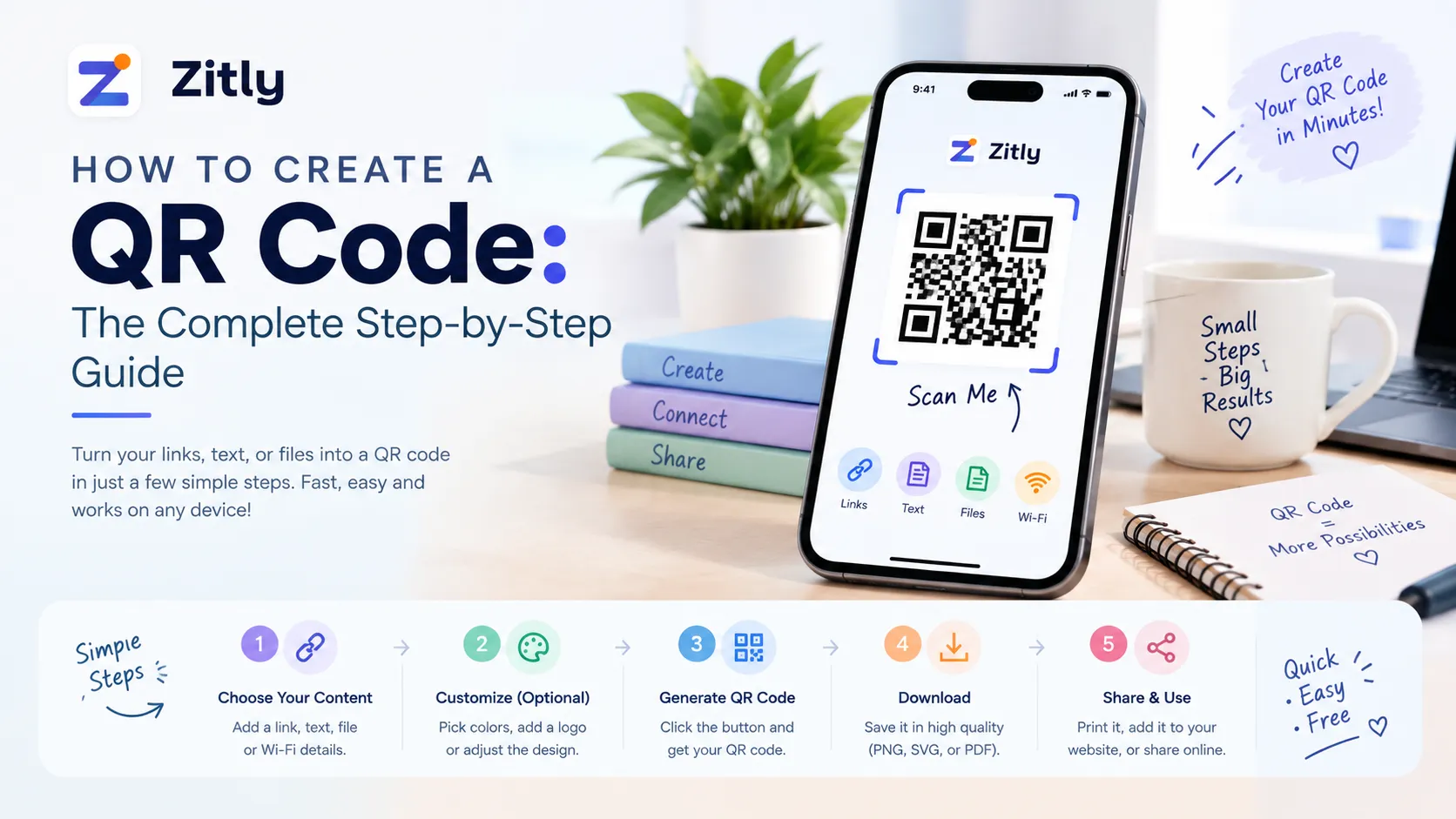
Learn how to create a QR code in minutes. Compare static vs. dynamic codes, follow the steps, avoid common design mistakes, and test before you print.