
Business Card QR Code Generator: How to Create a Free Code That Works
Create a free business card QR code in seconds. Add your contact details or logo, download it as a PNG or SVG, and share your details with one scan.
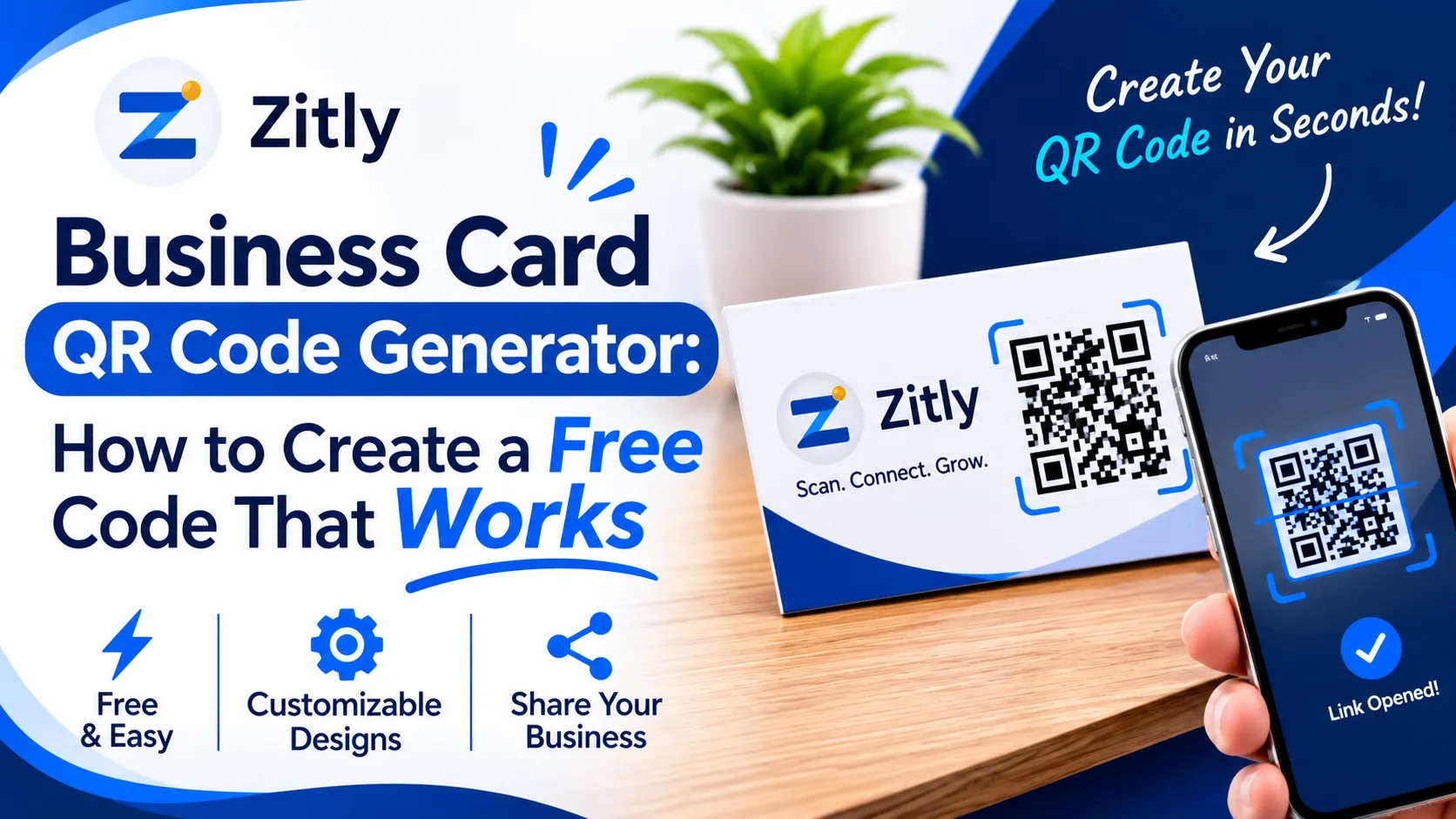
Handing over a paper card still leaves one problem. The other person has to type your number, spell your name, and hope they do not lose the card. A business card QR code generator solves that by turning your contact details, or a link to your profile, into a square code that any phone camera can read.
This guide shows you how to create one for free, which format to choose, how to add a logo, and how to avoid codes that fail after printing. It also answers the question most generators dodge: does a free QR code really last?
What Is a Business Card QR Code Generator?
A business card QR code generator is an online tool or app that converts your contact details, or a link to your profile, into a scannable QR code you can print on a card or share on screen. |
You enter a name, phone number, email, and company. The tool returns an image file, usually PNG or SVG. In some regions, the same tool is called a visiting card QR code generator or a name card QR code generator. The terms mean the same thing.
Two formats matter. A vCard QR code stores contact data inside the code. A URL QR code stores a web address that opens your profile, website, or digital business card.
How Does a Business Card QR Code Work?
A QR code is a grid of dark and light squares called modules. Three large corner squares tell the scanner which way the code faces. The rest of the grid holds your data plus extra recovery data.
When someone points a phone camera at the code, the phone turns the grid back into text. With a vCard, the phone usually offers to save a new contact. With a URL, it offers to open the link.
Most current phones read QR codes in the default camera app, as Apple Support explains for iPhone, so you don't need to install anything. Prompts differ by device, so test on both iPhone and Android.
How to Create a Business Card QR Code for Free Online
The process is similar in most tools. These steps work in Zitly’s free QR code generator, which offers vCard and URL types, logo upload, and watermark-free PNG or SVG export.
Choose the code type. Pick vCard to let people save your contact directly. Pick URL to send them to a page you control.
Enter your details. Add name, job title, company, one phone number, one email, and a website. Check every digit, because a typo is printed forever.
Keep the data short. More fields create a denser code with smaller squares, which is harder to scan on a small card.
Set the design. Dark squares on a light background are the safest choice. Change colors only if contrast stays strong.
Add a logo if supported. Keep it small. The logo section below explains the limits.
Download the file. Choose SVG for print because it stays sharp at any size. Otherwise, use a large PNG.
Test on several phones. Scan from the screen and from a printed test page.
Prepare for print. Place the code in your card design at its original proportions with clear space around it.
Free tools differ in limits. Some require an account, some cap file quality, and some restrict commercial use. Compare those points before you design your card.
What Information Should You Include in a Business Card QR Code?
A vCard follows a standard contact format defined in RFC 6350, so a good vCard QR code generator maps your fields to the right places in the address book. Include only what you want strangers to have.
Include: full name, job title, company, one main phone number, one work email, and your website.
Optional: office address if clients visit you, and one professional profile link.
Avoid: home address, a private mobile number, and anything you would not print on the card itself.
Anyone holding the card can scan it, so treat the contents as public.
vCard QR Code vs URL QR Code
A digital business card QR code generator often means a URL code that opens a hosted profile. A vCard code works differently, as the table shows.
Factor | vCard QR code | URL QR code |
|---|---|---|
Scan result | Offers to save your contact | Opens a web page |
Internet needed after scan | No | Yes |
Change details after printing | No, reprint needed | Yes, if the page is yours |
Code density | Higher, needs more print space | Lower, scans easily when small |
Scan tracking | Not with a static code | Possible through page analytics |
Choose vCard for fast saves at events. Choose a URL when your details change often, or you want to show more than a phone number. A static URL code that points to a page you own gives you editing without a paid dynamic plan. Picture a consultant who changes office numbers twice a year: a vCard would mean reprinting cards, while a URL code to a personal contact page means one edit. A URL code can also carry UTM parameters, so build the link with a free UTM builder and your scans show up in analytics.
Static vs Dynamic Business Card QR Codes
A static code holds your data directly. A dynamic code holds a short redirect link that passes through the provider’s server, which lets the provider change the destination later.
Factor | Static code | Dynamic code |
|---|---|---|
Where data lives | Inside the code | On the provider’s server |
Editable after printing | No | Yes |
Expiration risk | None from hosting | Depends on plan and provider |
Scan analytics | No | Usually yes |
Typical cost | Often free | Often paid or trial-based |
Not every free QR code is permanent. One major provider states that its static vCard codes never expire, while its dynamic vCard option starts with a 14-day trial. Before printing, ask whether the content lives in the code or on someone else’s server, and what happens if the account ends. Our guide to a free QR code generator with no expiration covers this in depth.
How to Create a Business Card QR Code With a Logo for Free
A logo makes the code look branded, but it also hides modules. QR codes survive this because of error correction, with four levels that recover roughly 7%, 15%, 25%, and 30% of damaged data.
Choose level H when you add a logo, because it recovers the most damage.
Keep the logo small and centered. Never cover the three corner squares.
Use strong contrast between the squares and the background.
Remember that higher error correction makes the code denser. A vCard is already dense, so a logo works best with short data or a URL code.
Scan the final design on several phones before printing.
For logo sizing and color choices in more depth, read our guide to a QR code generator with logo. Readability always comes before style.
How to Choose the Best Business Card QR Code Generator
The best business card QR code generator is the one that matches your needs and states its limits clearly. Judge any option, whether a website or an app, with this checklist.
Criterion | What to check |
|---|---|
Cost and registration | Which features stay free, and whether an account is required |
Downloads | SVG or high-resolution PNG with no watermark |
Logo and colors | Logo upload and color control with contrast warnings |
vCard support | Real contact data, not only a URL option |
Static or dynamic | Which types exist and what each costs |
Privacy and ownership | Who stores your data, and whether you can export or delete it |
Expiration policy | A written statement on how long dynamic codes keep working |
Commercial use | Whether printed cards fall inside the free terms |
The last row matters. TEC IT’s online barcode generator, for example, states that its free output is intended for non-commercial or private use. Design platforms such as Canva and Adobe Express let you place a code inside a card layout, but Adobe’s business card page describes entering a link, so confirm whether contact data is supported. Chrome can also turn a page address into a QR code, which suits URLs only. A business card QR code generator app can be handy for making a code between meetings, but check that it exports a real image file instead of keeping the code locked inside the app.
Business Card QR Code Design and Printing Best Practices
Contrast: dark code on a light background. Inverted codes fail on some scanners.
Quiet zone: leave blank space of at least four modules on every side.
File quality: use SVG or a high-resolution PNG, and never stretch the image.
Size: the right size depends on how much data the code holds and how far the scanner stands. A dense vCard needs more room than a short link.
Placement: avoid folds, glossy glare, and busy textures behind the code.
Proof: print one card on the final paper stock and scan it from normal handshake distance before ordering a batch. Glossy finishes can reflect light and cause misreads, so check the proof under normal room lighting.
Common Business Card QR Code Mistakes
Printing before testing. Fix: scan a proof on two phones.
Packing too many fields into one vCard. Fix: keep only essentials.
Using a dynamic code on a trial plan. Fix: confirm the plan or choose static.
Oversized logos. Fix: shrink it and raise error correction.
Low contrast brand colors. Fix: use dark squares on a light background.
No hint for the reader. Fix: add a short label such as Scan to save my contact.
If a printed code will not scan, work through the causes in this order: contrast, quiet zone, size, glare, then data length. Shortening the data is often the quickest fix, because fewer fields produce larger squares.
Who Should Use a Business Card QR Code?
Freelancers at networking events can let a prospect save their number before the conversation ends.
Real estate agents can print a vCard on signs and cards so clients save one reliable number.
Small business owners can add a branded code to printed visiting cards that links to a booking page.
Salespeople gain a contact method that works even when the prospect has no pen or time.
Consultants can link to a portfolio or proposal page that they update without reprinting.
Conclusion
Pick vCard when you want one scan to save your contact, and a URL code when your details change. Prefer static codes unless you truly need editing or analytics. Then test a printed proof on two phones. Your next step is to create the code, order one test card, and scan it before you print the full batch.
Frequently Asked Questions
Q: How do I create a business card QR code for free?
Open a free generator, choose vCard or URL, enter your details, download an SVG or high-resolution PNG, and test it on two phones before printing.
Q: What is a vCard QR code?
It is a QR code that stores contact details in the standard vCard format, so a phone can offer to save you as a new contact.
Q: Does a free QR code expire?
A static code does not expire because nothing is hosted. A dynamic code can stop working if the provider’s plan ends.
Q: Can I add a logo to a business card QR code?
Yes, if the tool supports it. Keep the logo small, centered, and paired with a higher error correction level.
Q: Which QR code generator is best for my business card?
Choose one that offers vCard or URL codes, clean downloads, clear terms, and no surprise expiry. Use the checklist above.
Q: Should I use a static or dynamic code?
Use static for reliability and simplicity. Use dynamic only if you need edits or scan data and accept the ongoing dependency.

Fahad Ahmad
Founder of ZITLY · Digital Entrepreneur · SEO & SaaS Specialist
Fahad Ahmad is the founder of ZITLY and a digital entrepreneur with over 10 years of experience in SEO, digital marketing, SaaS development, and web technologies. He specializes in creating practical online tools that help marketers, designers, developers, and business owners work more efficiently.
Through ZITLY, Fahad publishes tutorials, tool comparisons, productivity resources, and research-driven guides focused on simplifying digital workflows and improving online performance.
Related Articles
View all
Create free QR codes with no sign-up, email, or hidden fees. Generate permanent codes for links, PDFs, and Wi-Fi, then download and test them.
Create a free WiFi QR code in seconds. Share network access easily, add a logo, and connect iPhone or Android devices without typing passwords.
Learn how to create a QR code for free, choose static or dynamic codes, customize it, test it, and keep it working for years.