
Custom QR Code Generator: Create Free Branded QR Codes with Your Logo
Custom QR Code Generator: Create Free Branded QR Codes with Your Logo
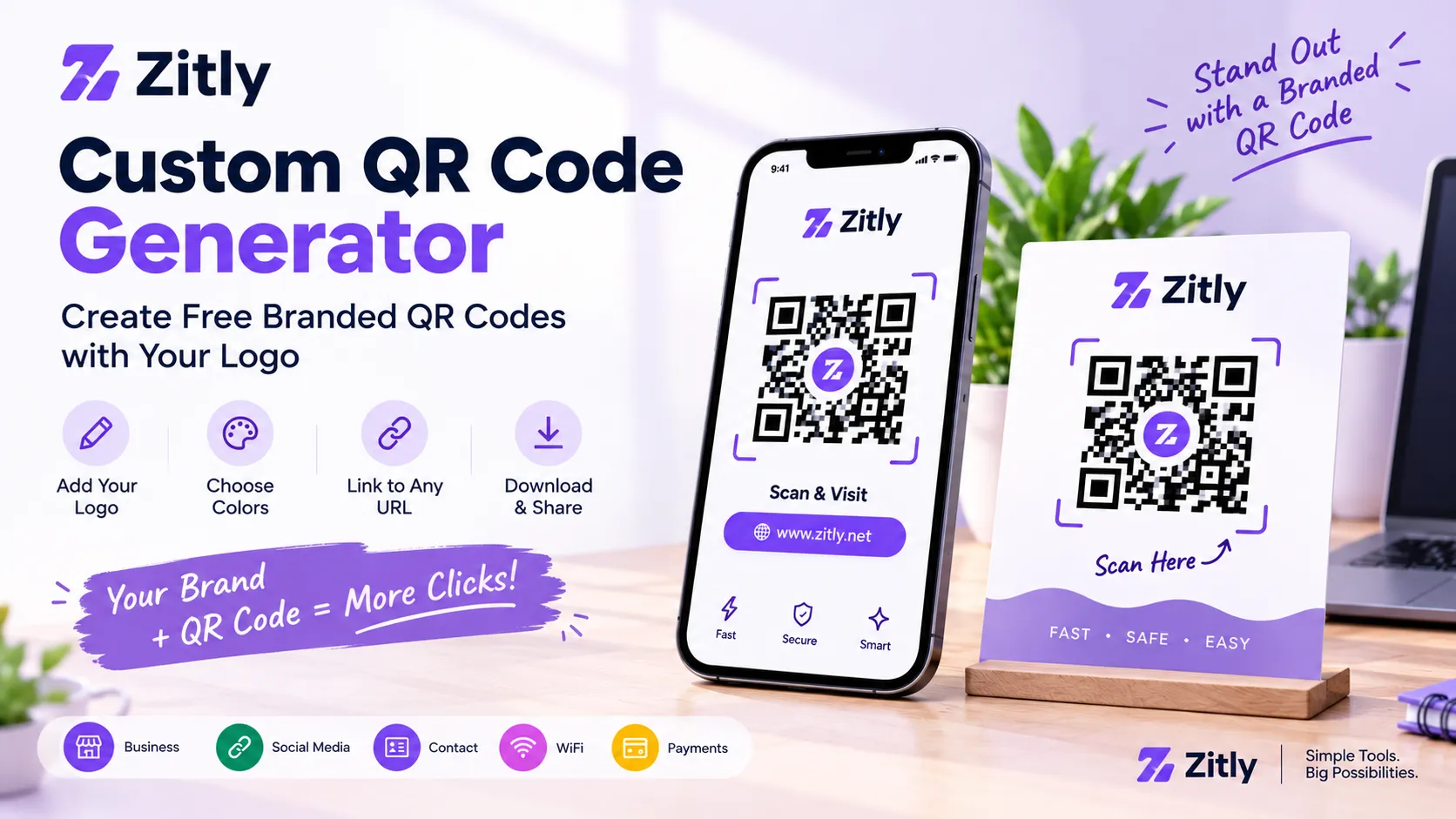
A custom QR code generator turns a plain link into a branded, scannable asset that carries your logo, colors, and style. You can create one in seconds, but small details determine whether it gets scanned or fails on the first try. This guide shows you which tool to pick, how to add a logo or image, how to set up payment codes, and how developers can automate everything with an API. You will also learn the mistakes that quietly kill scan rates, plus a checklist to use before anything goes to print.
What Is a Custom QR Code Generator?
A custom QR code generator lets you design personalized QR codes with your preferred colors, logo, patterns, and borders, giving them a unique look compared to standard black-and-white codes. Enter a link, text, or contact detail, style the code, test it, and download it as a PNG, SVG, or PDF. |
Basic generators stop at the download button. A branded QR code gives you greater control over its design, making it easier to reflect your business’s visual style and identity.
That matters, since people scan codes they trust. A code with your logo feels safer than an anonymous square on a flyer. Denso Wave, the Japanese company that invented it in 1994 to track car parts, created the format, which is why it survives dirt and damage so well.
Static or Dynamic: Pick the Right Code Type First
Before you design anything, choose the code type. This single choice controls whether you can edit the code later.
Static codes store the data inside the pattern. They never expire and cost nothing to keep alive, but you cannot change the destination after printing.
Dynamic codes store a redirect link on a third-party server. You can change the destination and track scans, but every code stops working if the service closes or the subscription lapses.
My rule is simple: Use static for anything printed permanently, such as menus, packaging, signage, and business cards. Choose dynamic only when you truly need to change the link after printing, and budget for the subscription that keeps those codes alive. Our guide to free QR codes with no expiration explains the choice in more detail.
Not sure what a tool gave you? Test it in ten seconds. Download the code, scan the file with any reader app, and read the decoded text. If it shows the provider’s domain followed by a short code, the code is dynamic and depends on that company. When a QR code contains your original URL directly, it is considered a static QR code.
Free Custom QR Codes: What You Really Get
Many people search for a free online tool because they want results without a subscription. Free tools can work well, but check three things first.
Expiry and trials: some tools offer a free trial, not a free code. Dynamic codes may stop working when the trial ends, and some tools demand an account first. Static codes avoid this problem.
Resolution: make sure the tool exports SVG or high-resolution PNG, not a tiny preview image.
Branding: confirm the tool adds no watermark and does not route your scans through an ad page.
A free static code with your logo is enough for most jobs, including permanent print. The biggest concern is printing an incorrect URL on thousands of product boxes. Verify the link before printing and ensure the destination page remains accessible long-term.
To try this yourself, Zitly’s QR code generator exports watermark-free PNG and SVG files and runs in your browser, so nothing you type is uploaded.
Custom QR Code Generator with Logo: Step by Step
Adding a logo is the most popular customization, and the easiest to get wrong. Follow this process, or read our deeper guide to adding a logo without breaking scans. New to QR codes? Start with our beginner guide to creating a QR code.
Choose the content type. Pick URL, vCard, WiFi, PDF, or text. Keep the link short, because shorter data creates a simpler pattern.
Paste your content first. Create the plain code before styling, so you can compare it against the branded version.
Upload your logo. Choose a clean logo in transparent PNG or SVG format, and keep its size within roughly 20% of the QR code’s total width.
Raise error correction. Set it to High (H). The higher level lets the code survive the area your logo covers.
Match colors with strong contrast. Use a dark foreground on a light background. Avoid light codes on dark backgrounds unless you have tested them.
Add a frame and call to action. Words like “Scan to see the menu” raise scans because they tell people what happens next.
Test on three phones. Try one iPhone, one Android, and one older model, in normal light and in dim light.
Download the right format. Use SVG for print and PNG for web pages.
In practice, the logo step causes most failures. Designers often enlarge the logo to look bolder, then discover the code fails on older phones. If a scan feels slow, shrink the logo first.
Custom QR Codes with Image and AI Styles
Using an Image as the Code Background
Some tools blend a photo into the pattern. These look striking on posters, but they lower scan reliability. Use high error correction, and test at the final print size.
Where an AI QR Code Generator Fits
An AI generator creates artistic patterns from a text prompt, such as a code shaped like a garden or a city skyline. These designs attract attention, yet they often break scanning rules. Treat AI output as a draft, scan it on several devices, and switch to a cleaner version if one phone fails.
Canva, Adobe, and Get QR Compared
Three names appear again and again in searches. Here’s a practical comparison of how the two options work in real-world situations.
Features and plans change, so check each site before you commit. We build Zitly, so we state its limits plainly.
Tool | Best for | Strength | Check before printing |
|---|---|---|---|
Canva | Posters and social posts | The code sits inside your design file | Whether you can edit the code after export |
Adobe Express | Teams using Adobe brand assets | The code sits beside your brand kit | Tracking options and export formats |
Get QR | Dynamic codes with scan tracking | Editable destinations after printing | Which features need a paid plan |
Zitly | Free static codes with a logo | Runs in your browser, no watermark, PNG and SVG export | Static only, so no edits or scan analytics after printing |
My advice: design in Canva or Adobe when the QR code is one element of a larger layout. Use a dynamic service like Get QR only when you need editable destinations and analytics. Use a static generator when the code is printed once and must last.
Custom QR Code Generator for Payment
Payment QR codes need extra care, because one wrong character sends money to the wrong place. Follow these rules.
Generate codes from your bank or payment provider app when possible, since they use the correct account format.
Label the code with your business name, so customers can verify it before paying.
Scan the finished code yourself and confirm the name shown matches your business.
Replace stickers that look scratched or covered, because fraudsters sometimes paste their own codes over real ones.
Shop owners should check counter codes weekly. The Federal Trade Commission has warned that scammers cover real codes with their own, so a ten-second check prevents costly fraud. If you use a payment link type, paste a link from your provider instead of typing account numbers by hand.
QR Code Generator API and GitHub Options for Developers
If you create codes in bulk, manual tools slow you down. An API creates codes from your own app or workflow.
When an API Makes Sense
Personalized codes for tickets, invoices, or event badges
Product labels generated from inventory data
Certificates with unique verification links
Using GitHub Libraries
GitHub hosts many open-source libraries in JavaScript, Python, and other languages. They are free and flexible, so you control styling and privacy. For styled JavaScript codes with a logo, the QR Code Styling library is a popular MIT-licensed choice. Zitly itself draws codes in the browser with the open-source qrcode library. The tradeoff is time: you maintain the code and build any tracking yourself. Check the license and recent activity before choosing one.
Keep Your Pages Fast
Generate codes ahead of time or on the server, then serve them as cached SVG files. Set width and height on every image, which is a standard fix for layout shifts.
How to Track Scans and Prove Results
A branded QR code is most useful when you can track its performance, and a dynamic code isn't always necessary. Add UTM tags to the destination URL to help your analytics platform identify visits coming from that QR code.
Google explains the parameters in its campaign URL guide, and Zitly’s UTM builder creates GA4-ready links. Create one link per placement. Posters and flyers should use different links, so you can tell which one works.
Scans per placement
Scan-to-action rate, such as purchases or sign-ups
Security Tips Before You Publish
A branded code builds trust, so protect that trust. Preview the destination before you print, and use HTTPS links only. Avoid link shorteners you do not control, because a shortener that shuts down breaks every code you printed.
Design Tips for QR Codes That Scan Reliably
Quiet zone: Keep a clear, empty border of at least four modules around the QR code to help scanners detect it correctly.
Size: For close-range scanning, print the code at a minimum of 2 × 2 cm. Increase its dimensions when people need to scan it from farther away.
Contrast: dark on light wins every time.
Format: use SVG or PDF for print so edges stay sharp.
Common Mistakes People Make
Using a long URL, which creates a dense pattern
Skipping the test on the final printed material
Linking to a desktop-only page when most scans come from phones
Printing a dynamic code on a plan that later expires
Pre-Print Checklist
The link opens fast on mobile data
You scanned the code on three devices
Error correction is High (H) when a logo is present
The quiet zone is intact
UTM parameters track the source
You have a backup plan if the subscription ends
Conclusion
A custom generator gives you speed, branding, and control, but only when you choose the right code type and test properly. Start with the purpose, keep the content short, protect contrast, and run a final scan check on real devices. Do that, and every code you create will look professional and work the first time. Ready to build yours? Open the free QR code generator and run through the checklist above.
Frequently Asked Questions
Q: Is there a free custom QR code generator with a logo?
Yes. Many tools let you add a logo to a static code at no cost. Confirm there is no watermark and that the export is high resolution.
Q: Do custom QR codes expire?
Static codes never expire. Dynamic codes work only while the account or plan stays active.
Q: How big should the logo be?
Keep it under about 20 percent of the code width, and test the code after you add it.
Q: Is It Possible to Generate a QR Code for Receiving Payments?
Yes, but use your bank or payment provider tool when possible, and verify the code before you share it.
Q: How to Identify a Static or Dynamic QR Code?
Scan the QR code and check the information it contains. If it links directly to your chosen URL, it is generally static. If it uses a QR service’s shortened URL that redirects elsewhere, it is likely dynamic.
Q: Which file format should I download?
Use SVG or PDF for print and PNG for websites.

Fahad Ahmad
Founder of ZITLY · Digital Entrepreneur · SEO & SaaS Specialist
Fahad Ahmad is the founder of ZITLY and a digital entrepreneur with over 10 years of experience in SEO, digital marketing, SaaS development, and web technologies. He specializes in creating practical online tools that help marketers, designers, developers, and business owners work more efficiently.
Through ZITLY, Fahad publishes tutorials, tool comparisons, productivity resources, and research-driven guides focused on simplifying digital workflows and improving online performance.
Related Articles
View all
Learn how to create a QR code for free, choose static or dynamic codes, customize it, test it, and keep it working for years.
Create a free WiFi QR code in seconds. Share network access easily, add a logo, and connect iPhone or Android devices without typing passwords.
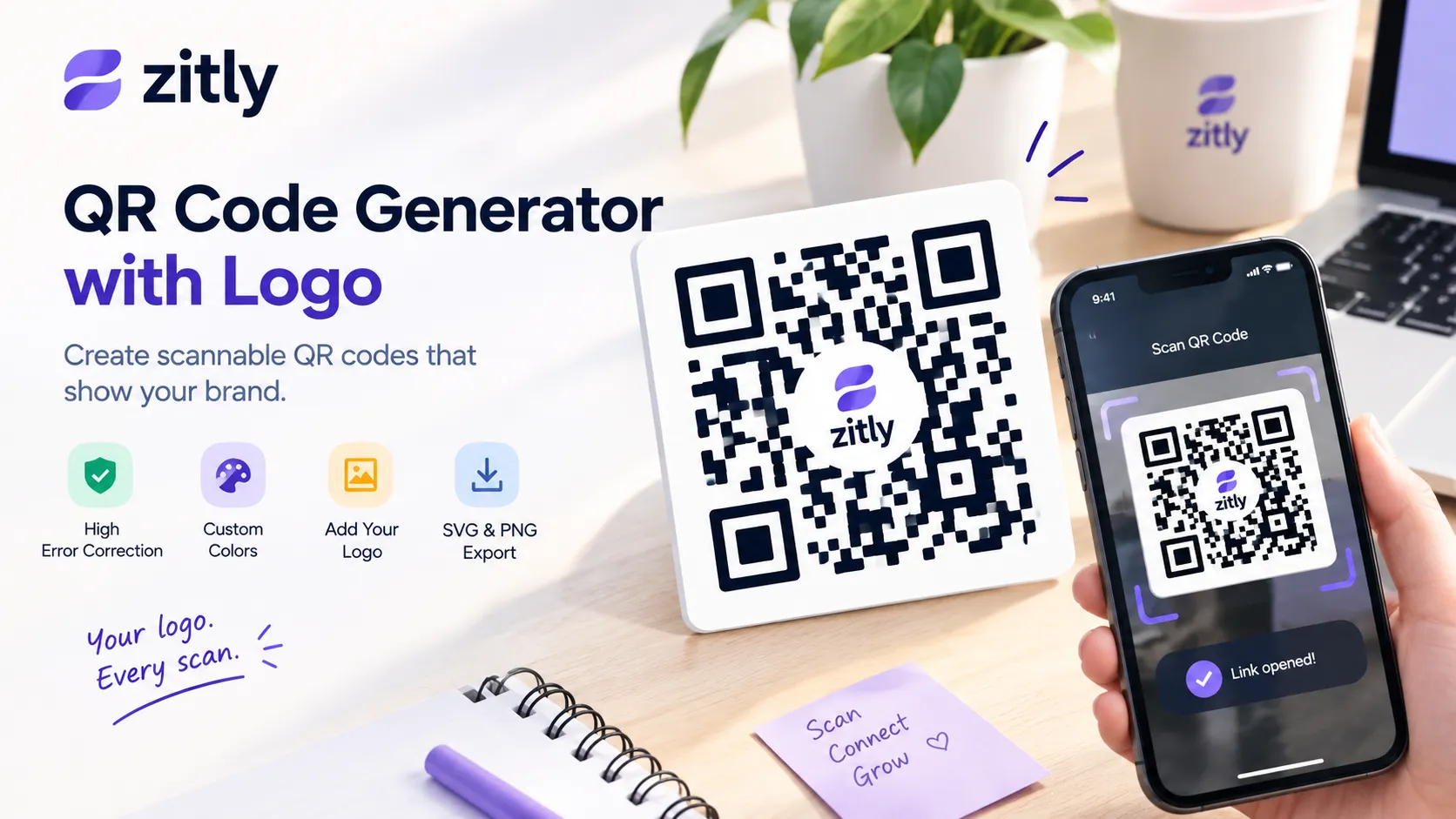
Create a QR code with a logo that stays scannable. Learn about logo size, error correction, colors, testing, printing, and free QR code tips.